Streamlining 1099 Filing with QuickBooks Online: Your Comprehensive Step-by-Step Guide

1099 tax forms and accounting services for businesses

Tax season is often challenging for business owners, and filing 1099 forms for contractors and vendors can add to those challenges. 1099-MISC forms are essential for reporting payments made to contractors and non-employees, ensuring compliance with IRS regulations. Fortunately, QuickBooks Online (QBO) offers powerful tools to simplify this process and allows you to easily prepare, review, and file 1099 forms electronically by following a few simple steps outlined below.

What You’ll Learn

  • How to Track Vendors in QuickBooks Online as a 1099 Vendor
  • How to Map Your Expense Accounts to the Correct 1099 Form
  • Filing Your 1099s with Confidence Through QuickBooks Online

Streamlining 1099 Filing with QuickBooks Online

Tax season is often challenging for business owners, and filing 1099 forms for contractors and vendors can add to those challenges. 1099-MISC forms are essential for reporting payments made to contractors and non-employees, ensuring compliance with IRS regulations. Fortunately, QuickBooks Online (QBO) offers powerful tools to simplify this process and allows you to easily prepare, review, and file 1099 forms electronically by following a few simple steps outlined below.
Preparation: Laying the Groundwork

If you haven’t already done so, update your books! Make sure your financial records are current and reconcile all transactions. You need to ensure every payment has a corresponding payee so amounts can be properly reported.

Next, verify vendor information, confirming all vendor details are accurate and complete. This includes names, addresses, tax identification numbers (TINs), and email addresses. Having correct information from the start can prevent costly errors and delays.

Setting Up: Configuring QuickBooks Online

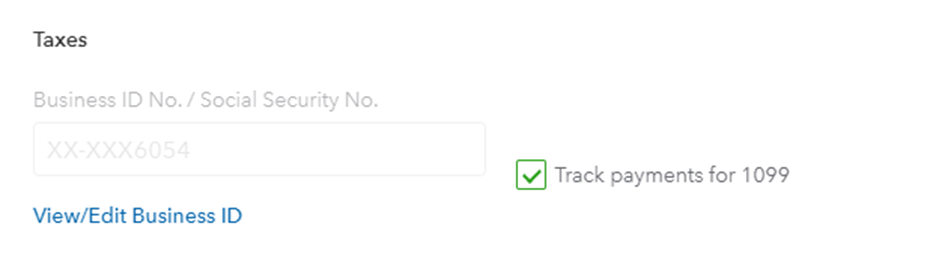
To use the 1099 filing feature in QBO, you must track the vendor as a 1099 Vendor. If you already have Vendors set up, choose “Edit” and update the fields below. You should always get a W9 from your vendor, which I suggest saving as an attachment in QBO on the Vendor Record.

Vendor tracking dashboard for effective business management

Once your vendors are tagged and set up to be tracked, you can initiate the 1099 preparation process. Go to the Expenses tab on the left side and select Vendors. From the top right of your screen, click on the Prepare 1099 button to start the process.

Prepare 1099 forms for accurate business tax reporting and compliance.

Company Review: Ensuring Accuracy

The first prompt you’ll receive from QBO is to review your company’s information to confirm all company details, including business name, address, and tax ID, are up to date and accurate.

Mapping Accounts: Linking Your Expenses

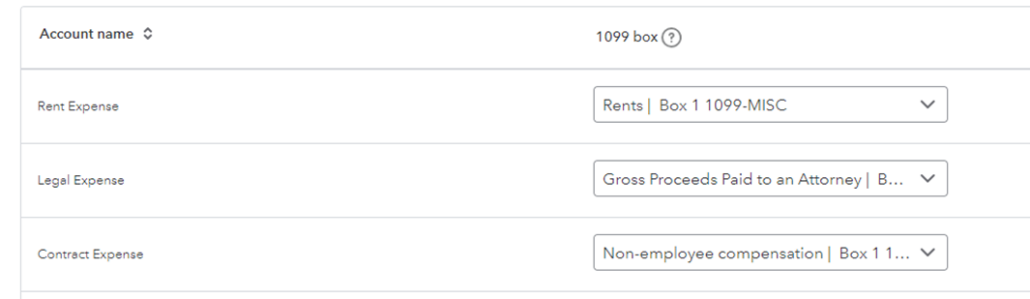
Next, you’ll map your expense accounts to the appropriate boxes on the 1099 form. For example, non-employee compensation should be linked to Box 1 on the 1099-NEC7, and rents should be mapped to Box 1 on the 1099-MISC. QBO makes this easy by providing a list of your Chart of Accounts, allowing you to choose the correct accounts with just a few clicks.

Graphic illustrating business expenses breakdown and management

Vendor Confirmation: Reviewing Thresholds and Totals

QBO automatically pulls up vendors who meet the 1099 filing threshold (typically $600 or more). Carefully review these totals and confirm that each vendor’s information is correct.

If you are missing vendors, you have the chance to edit their information and add people as 1099 vendors.

Once you’re sure all vendors and contractors are included, review the payment totals in each box. If they are not what you expected, you may want to review your transactions or vendor details again before finalizing the forms. Payments made with credit cards are not included in your 1099 form and will be reported by the credit card company.

E-Filing Option: Streamlining Submission

Choose Your Filing Method: QBO offers a convenient e-filing service for a fee, allowing you to submit your 1099 forms directly to the IRS and email copies to your contractors. This option saves time and ensures timely filing.

Paper Filing: You can print and mail the forms yourself if you prefer to send physical copies of your 1099s. However, keep in mind the IRS deadlines to avoid late fees

Final Review & Filing: Completing the Process

Conduct a Thorough Final Review: Before submitting, take one last look at all the information. Double-check for errors or omissions, as corrections through QBO are not allowed once the forms are filed.

File with Confidence: Ensuring Compliance and Peace of Mind

Once everything is verified, proceed with filing your 1099s. QBO will guide you through the final steps to ensure your forms are submitted correctly.

As you can see, filing 1099s doesn’t have to be daunting! With QuickBooks Online, you can master the art of 1099 filing and enjoy a smooth, stress-free process. So, get ready to dive in, streamline those forms, and ensure your contractors receive their 1099s hassle-free!

If you prefer to let an expert handle your 1099 filings, we’re happy to help! Reach out to the Devine team, and we’ll send over more information about our 1099 filing services and pricing.

 Need Help with Filing Your 2024 1099s? Let the Devine Team Help!

Learn More

Devine Consulting LLC
Privacy Overview

This website uses cookies so that we can provide you with the best user experience possible. Cookie information is stored in your browser and performs functions such as recognising you when you return to our website and helping our team to understand which sections of the website you find most interesting and useful.